![logoAlpaca-1.png]](https://26983596.hs-sites-eu1.com/hs-fs/hubfs/logoAlpaca-1.png?width=135&height=171&name=logoAlpaca-1.png)
In order to edit/add/remove students please log in to your Teacher Dashboard account, go to Admin, My Classes and click on the relevant class.
On top of the page you will see 4 buttons, select the Edit/Remove Students (please see screenshot below)

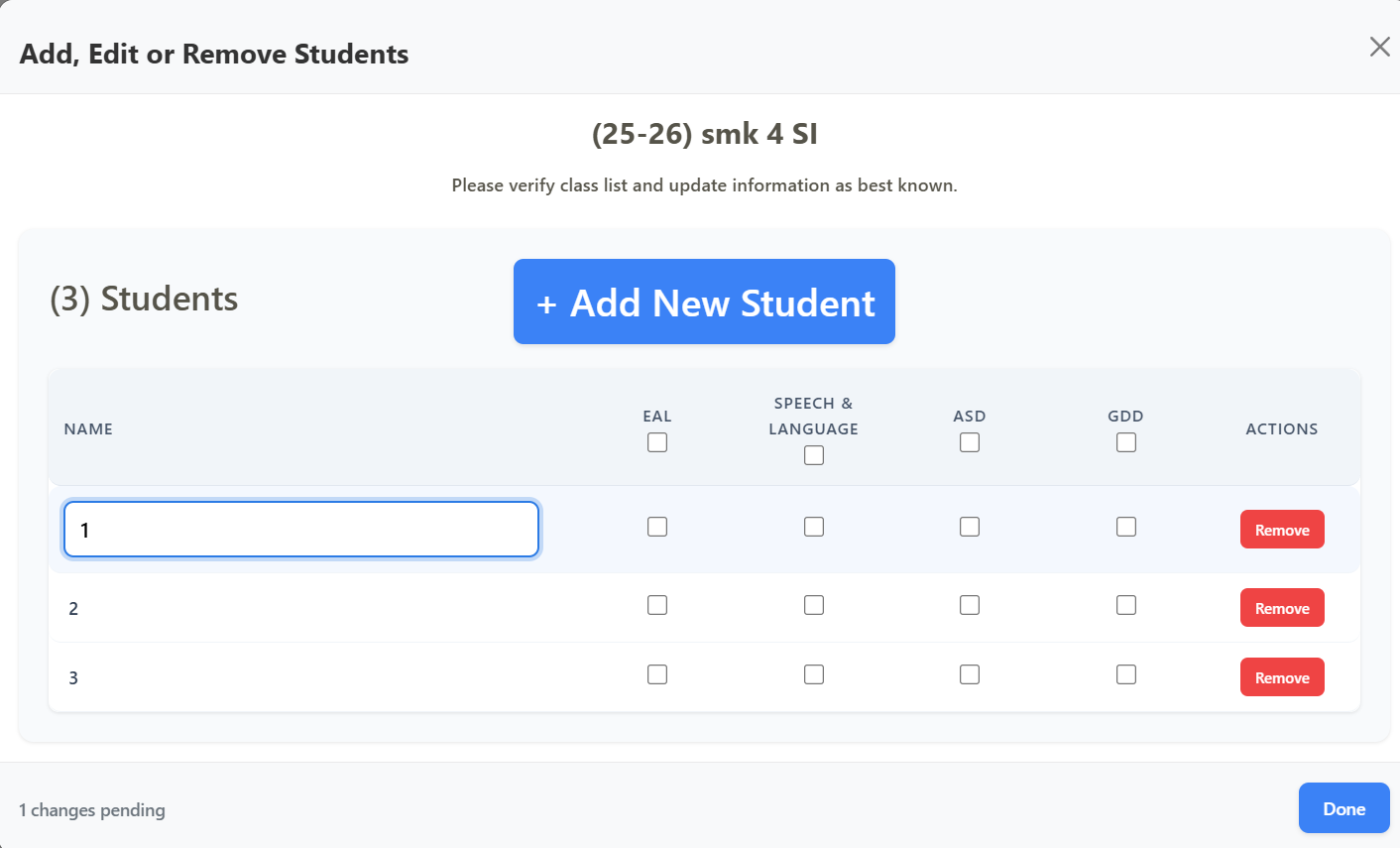
When you click on it you will be able to add new students (big blue button) or delete students (click on the red button Remove).
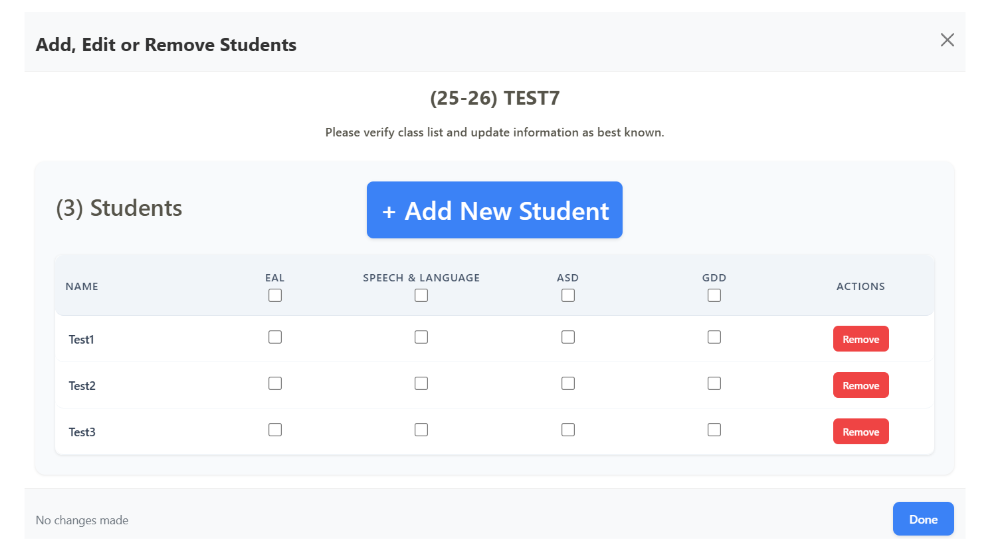
If you want to edit student's name simply double click on that name.